3.3 Configuring Roles and Access Control
Identity Console gives administrators the ability to assign specific responsibilities to users and to present the user with only the tools (and their accompanying rights) necessary to perform those sets of responsibilities. This functionality is called Roles and Access Control (RAC).
RAC allows administrators to focus the user on a specified set of functions, called Tasks, and objects as determined by the grouping of tasks called Roles. What users see when they access Identity Console is based on their role assignments in eDirectory. Only the tasks assigned to that user are displayed. The user does not need to browse the tree to find an object to administer. The Identity Console tile for that task presents the necessary tools and interface to perform the task.
You can assign multiple roles to a single user. You can also assign the same role to multiple users.
RAC is represented by objects defined in eDirectory. The base eDirectory schema gets extended during the Identity Console installation. The RAC object types are listed in the following table.
|
Object |
Description |
|---|---|
|
RAC Configuration |
A container object that holds all RAC Role and Module objects. RAC Configuration objects are the topmost containers for all RAC objects. A tree can have any number of RAC Configuration objects. These objects have “owners,” which are users who have management rights over the RAC Configuration. RAC Configuration objects can be created in any of the following containers:
|
|
RAC Role |
A container object that specifies the tasks that users (members) are authorized to perform. Defining a Role includes creating an RAC Role object and specifying the tasks that the role can perform. Role members can be Users, Groups, Organizations, or Organizational Units, and they are associated to a role in a specific scope of the tree. The RAC Task and RAC Book objects are assigned to RAC Role objects. RAC Role objects can be created only in RAC configuration containers. |
|
RAC Module |
A container object that holds RAC Task and RAC Book objects. RAC Module objects have a module name attribute that represents the name of the product that defines the tasks or books (for example, eDirectory Maintenance, NMAS, or NetIQ Certificate Access). RAC Module objects can be created only in RAC Configuration containers. |
|
RAC Task |
A leaf object that represents a specific function, such as resetting login passwords. RAC Task objects are located only in RAC Module containers. |
|
RAC Book |
A leaf object that containing a list of pages assigned to the book. An rbsBook can be assigned to one or more Roles and to one or more Object class types. rbsBook objects are located only in rbsModule containers. |
|
RAC Scope |
A leaf object used for ACL assignments (instead of making assignments for each User object). RAC Scope objects represent the context in the tree where a role will be performed and are associated with RAC Role objects. They inherit from the Group class. User objects are assigned to an RAC Scope object. These objects have a reference to the scope of the tree that they are associated with. This object is dynamically created when needed, then automatically deleted when no longer needed. They are located only in RAC Role containers. WARNING:Never change the configuration of a Scope object. Doing so will have serious consequences and could possibly break the system. |
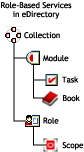
The RAC objects reside in the eDirectory tree as depicted in the following figure.
Figure 3-1 RAC Objects in the eDirectory Tree
3.3.1 Defining RAC Roles
RAC roles specify the tasks that users are authorized to perform. Defining an RAC role includes creating an RAC Role object and specifying the tasks that the role can perform and the User, Group, or container objects that can perform those tasks. In some cases, NetIQ Identity Console Tiles (product packages) provide predefined RAC roles that you can modify.
The tasks that RAC roles can perform are exposed as RAC Task objects in your eDirectory tree. These objects are added automatically during the installation of product packages. They are organized into one or more RAC Modules, which are containers that correspond to the different functional modules of the product.
For information on assigning members to a role, see Assigning RAC Role Membership and Scope.
Creating a Role Object
Use the RAC Configuration to create a new RAC Role object. We recommend creating the new RAC Role object in the same RAC Configuration container where the other RAC Role objects reside (for example, the RAC Configuration container).
-
On the Identity Console home page, click .
-
In the tab, click

-
On the window, click
 , and select a .
-
Enter the .
-
Select the or the group of members that you want to associate with the Role.
-
-
From the menu, select the tasks that need to be assigned to the Role.
-
Click .
A new Role is created. Close the window and open the Configuration again to view the changes.
See Defining Custom RAC Tasks for information on adding members to roles.
Modifying the Tasks Associated with a Role
Each RAC role has a set of available tasks associated with it. You can choose which tasks are assigned to a particular role, adding or removing tasks as necessary.
-
On the Identity Console home page, click tile.
-
On the tab click the configuration in which you want to modify a role
-
On the tab, click the role you want to modify.
-
(Optional) If you want to add tasks to a role, complete the following steps:
-
Click
 .
. -
Select the Task, click .
-
-
(Optional) If you want to remove tasks from a role, complete the following steps:
-
Select the tasks you want to remove.
-
Click
.
-
-
Click .
Assigning RAC Role Membership and Scope
After you have defined the RAC roles needed in your organization, you can assign members to each role. In doing so, you specify the scope in which each member can exercise the functions of the role. The scope is the location or context in the eDirectory tree where this role can be performed.
A user can be assigned to a role in the following ways:
-
Directly
-
Through group and dynamic group assignments. If a user is a member of a group or a dynamic group that is assigned to a role, then the user has access to the role.
-
Through organizational role assignments. If a user is an occupant of a organizational role that is assigned a role, then the user has access to the role.
-
Through container assignment. A user object has access to all of the roles that its parent container is assigned. This could also include other containers up to the root of the tree.
A user can be associated with a role multiple times, each with a different scope. You can also assign the same task to multiple members.
To assign role to an existing member:
-
On the Identity Console home page, click tile.
-
Click tab.
-
Click
> select the member. -
On the window, select the role that is required.
-
Specify, or use the Object Selector to find the desired object to be a role member.
-
Specify, or use the Object Selector to find the scope within which this member can perform the role.
-
-
Click .
The roles are added successfully. Close the window and open the Configuration again to view the changes. For more information click Help
 .
.
Deleting a Role in RAC Configuration
-
On the Identity Console home page, click tile.
-
Click the tab.
-
Click the configuration in which you want to delete an RAC role.
-
Select the role you want to modify.
-
Click
 .
. -
Click .
3.3.2 Defining Custom RAC Tasks
Creating an Identity Console Task
Create an Identity Console task through , or through . The forms created here reflects as a Task. For information see: Managing Custom Forms and Managing External Application.
Modifying the Associated Role
-
On the Identity Console home page, click tile.
-
Click tab >
 .
. -
The list of associations that the user is already part of are displayed.
-
Modify the , , and object as required.
-
Click , and close.
Deleting a Task
-
On the Identity Console home page, click tile.
-
Click tab.
-
Click the configuration in which you want to delete a task.
-
Select the task you want to delete.
-
Click
 .
. -
Click .