6.1.1 Components of Access Control
Access Control depends on four primary components to enable privileged access to users on various types of resources.
Permissions
Under an assignment, one or more permissions define the access criteria such as Privilege Level, Allowed Access time, Monitoring options, File or Folder access control, Customization etc. Below is the list of permissions based on the Resource Types.
Windows Agents
-
Credential Provider
-
Direct RDP
-
Web Agent RDP
-
Privileged Applications
UNIX Agents
-
Privileged Shell
-
Login Shell
-
Privileged Commands
SSH Servers
-
Terminal SSH
-
Web SSH
Telnet Servers
-
Terminal Telnet
-
Web Telnet
Windows Servers
-
Web RDP
Each permission can have different options, based on Resource Type and mode of access.
Privilege Elevation
-
Default – Default Privileges selected for Resource in Resource Pool
-
Submit User – No Elevation of Privileges
-
Common Run User or Common Credential – A Common privilege for all the Resources authorized through this permission
-
Custom Run User or Custom Credential – Custom Credentials per Resource
Time Restrictions
-
All Days – 24 hours and 7 days access
-
Time Range – Selecting a specific start time and end time, recurring every week
-
Custom – A recurring time slot for each selected day
NOTE:If a Permission is defined for All Days which is 24 hours and 7 days, another permission of same type is not allowed under an assignment.
NOTE:The time specified is always treated as GMT.
Access and Monitoring Options
-
Session Capture – Capture Key Strokes and Low level audits
-
X11 – Applicable for Terminal SSH only
-
Video Capture – Capture Videos
-
Video FPS – Frames Per Second to use while capturing Videos
-
User Message – Display a message to the Users while accessing the session authorized by this permission. This is applicable for selected permissions only
-
Shell Options – Applicable for UNIX Agent permissions, to change the shell behavior
NOTE:Low Level Audits, also called as Command Audits are applicable only for Agents.
Enhanced Access Control
Administrators can enforce access restrictions on files, folders or executables in Agents, by defining the allowed operations such as read, write, delete and execute.
NOTE:Unless the user logs off and logs in again, the EAC Policy is not effective.
Command Lists
Command Lists are useful to allow/deny access on specific commands or applications within privileged sessions.
-
On Agents, Privileged Applications/Privileged Commands permissions can be configured using Command Lists, to allow privileged access to specific applications or commands, rather than providing a complete privileged session.
-
On Agent-less scenarios, Command Lists are helpful to allow or deny specific commands within privileged sessions.
Customization
Administrators can add Perl scripts to permissions, to customize the behavior of the permission before authorizing the privileged access. For example, a script added in the permission can verify a user’s attribute such as location or department, before authorizing the access.
Figure 6-1 Overview of Privileged Access Permissions

Example Scenarios
Scenario 1
Consider the following scenario:
-
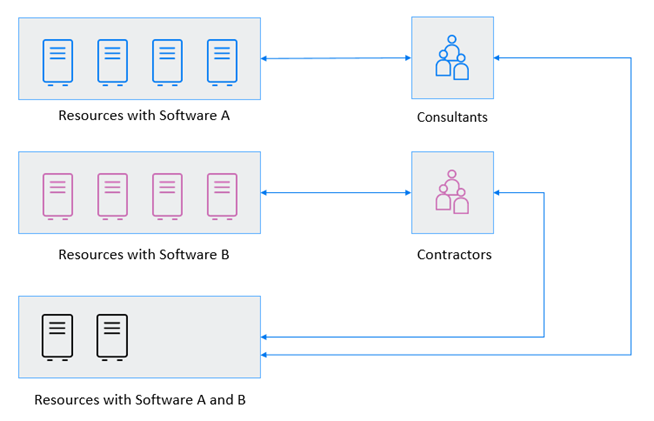
An organization contains two user roles named consultants and contractors, need access on ten resources
-
Consultants role need access on four resources where software A installed
-
Contractors role need access on four resources where software B installed.
-
Both roles need access on two shared resources where both software A and B are installed.
Steps to provide privileged access in this scenario:
Resource Pools
-
Create a Resource Pool (A) with four Resources where software A is installed.
-
Create a Resource Pool (B) with four Resources where software B is installed.
-
Create a Resource Pool (AB) with four Resources where both software A and B are installed.
User Roles
-
Create a User Role – Consultants and include the required users
-
Create a User Role – Contractors and include the required users
Assignments and Permissions
-
Create an assignment between Resource Pool A and Consultants and define required permissions.
-
Create an assignment between Resource Pool B and Contractors and define required permissions.
-
Create an assignment between Resource Pool AB and Consultants and define required permissions.
-
Create an assignment between Resource Pool AB and Contractors and define required permissions.
Figure 6-2 Usage Scenario Permissions
Scenario 2
Consider the following scenario:
-
A user role needs access to a set of Windows Agents over weekdays with Privilege elevation. Administrator wants to monitor the activity as well as controlling file access and blocking certain applications from execution.
-
The same user role needs access on those resources over weekends without elevation.
Steps to provide privileged access in this scenario:
Resource Pools
-
Link the Agents to appropriate Credential Vaults, where all the required credentials are present.
-
Create a Resource Pool with all the required Windows Agents in it.
User Roles
-
Create a User Role with all the required users.
Assignments
-
Create an Assignment between the created Resource Pool and User Role.
Permissions
-
Create a Credential Provider Permission with below options
-
Privilege Elevation as required (Example: Administrator).
-
Define Time Restrictions with Monday 00:00 to Saturday 00:00.
-
Enable Session Capture and Video Capture.
-
Configure Enhanced Access Control for Files. Directories and Executables and add it in this permission.
-
-
Create another Credential Provider Permission with below options:
-
Privilege Elevation with any other account which does not have any higher privileges.
-
Define Time Restrictions with Saturday 00:00 to Monday 00:00.
-
Disable Session Capture and Video Capture.
-