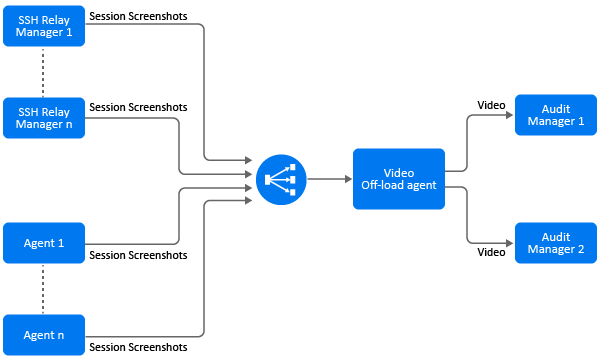
Privileged Account Manager audits all the privileged session operations in the form of keystrokes and videos based on the command control rule configuration. If you have enabled video capture in the rule, the video is generated in the agent where the session is running. In an agentless environment, such as SSH relay with X11 enabled, the video is generated in the SSH relay manager. After the video is generated, it is sent to audit manager in the audit zone.
The video generation operation consumes more CPU if there are multiple concurrent sessions to the agent or SSH relay manager. Hence, Privileged Account Manager provides an option to configure a server (video off-load agent) exclusively for video generation operation. You can use a video off-load agent, when you are using SSH Relay, Application SSO or when the agent has limited resource. When the video off-load agent is down, the conversion operation is performed on the Privileged Account Manager agent where the session is running.
Figure 8-1 The following illustrations explains the flow of the video generation process in an agent environment:
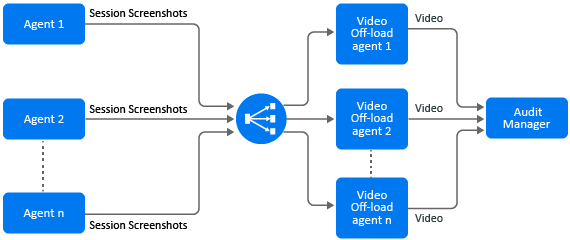
Figure 8-2 The following illustrations explains the flow of the video generation process with multiple audit managers:
The video off-load server is a Privileged Account Manager agent, where the session images are converted to videos. For the system requirements of the video off-load server, see the System Requirements in Privileged Account Manager Documentation website.
To setup and configure a video off-load agent:
Install and register the Privileged Account Manager agent on every video off-load server.
NOTE:You can use only Linux server as a video off-load server.
For more information about installing and registering a Privileged Account Manager agent, see Installing and Registering a Framework Agent in the Privileged Account Manager Installation Guide.
Install the videoprocessor package on every video off-load server:
Click Hosts.
Select the host which is a video off-load server, then click Packages.
Click Install Packages.
Select the videoprocessor package.
Click Next to start installing the selected package.
Click Finish.
For more information about installing a package on the agent, see Installing Packages on a Host.
Configure a location on every video off-load server to store session images and videos:
Click Hosts.
Select the host which is a video off-load server, then click Packages.
Select the videoprocessor package.
Click Video Settings.
Specify the Video Processor Path, then click Next.
Video Processor Path is the location in the video off-load server where:
The temporary video capture data that is used for video generation is stored.
The generated videos are stored before sending them to the audit manager.
Video off-load settings help in tuning the performance of the video off-load agent to optimize the video generation operation based on the resources available on the video-offload agent.
The video off-load setting is a global setting that is applied to all the video off-load agents.
To edit video off-load settings:
Click Command Control > Video Settings.
Click Video Processor and specify the following:
Apply Settings: Select Default to use the predefined settings, you cannot modify the predefined settings. When you select Default, Conversion Priority is set to Normal and Auto Manage Resources is set to Yes.
Select Customize to customize the following settings:
Auto Manage Resources: If you set this option to Yes, then based on the CPU and memory usage at any given time, Privileged Account Manager determines the number of video conversion instances that can be executed simultaneously. For better throughput and optimized CPU and RAM usage, you must set this option to Yes.
If you set this option to NO, you must define Number of Simultaneous Instances.
Number of Simultaneous Instances: Specify the maximum number of video conversion instances that can run simultaneously at a time in the video off-load agent.
Conversion Priority: This option determines the video conversion process priority in CPU. By setting the priority, you can ensure that other operations of the CPU are uninterrupted.
Set this option to Low when video conversion is not of high priority. If you set the priority to Low the video generation operation would be slow and would consume more temporary storage to accumulated the video generation data.
Set this option to Normal when video conversion process is of moderate or high priority.
Click Finish.
You must enable Video Off-load in the appropriate Privileged Account Manager rule to transfer the session image to video conversion activity to the video off-load agent.
Before enabling video off-load, ensure that you have setup the video-offload agent. For more information about setting up the video-offload agent, see Setting Up Video Off-Load Agent.
To enable video off-load:
Click Command Control on the home page of the console, then click Create a rule.
(Conditional) If you are creating a new rule, then click Create a rule.
(Conditional) If you are updating an existing rule to support video off-load, then click the appropriate rule.
Select the following options:
For Windows:
Session Capture: Set this option to ON to enable session capture.
Video Capture: Set this option to ON to enable video capture.
Video Offload: Set this option to ON to enable video offload.
For SSH:
Session Capture: Set this option to ON to enable session capture.
X11 Enable: Set this option to Yes to enable X11 application access.
Video Capture: Set this option to ON to enable video capture.
Video Offload: Set this option to ON to enable video offload.
For more information about the rule configuration fields, see the Modifying a Rule.
Click Finish.
For emergency access requests, you can off-load the video generation operation by selecting Video Capture and Video Offload when approving the request.