3.1 Deployment Requirements

PlateSpin Migrate Connector requires the following hardware, software, and network settings in your migration environment.

3.1.1 PlateSpin Products

PlateSpin Migrate Connector integrates and orchestrates migration activities between the following PlateSpin products that you deploy in your environment:

  • PlateSpin Transformation Manager 1.1 SP1

    Configure PlateSpin Transformation Manager and set up a transformation project. You can assign the Migrate Connector to the PlateSpin Transformation Server or to a specific project on the server. Transformation Manager is required for automated discovery and automated migration execution. See Section 3.2, Configuring a Project Assignment for a Connector Instance.

  • PlateSpin Migrate 12.2 SP1

    In a PlateSpin Migration Factory environment, PlateSpin Migrate Connector can connect to one or more PlateSpin Migrate 12.2 SP1 servers for your project. See Section 3.4, Configuring Connection Information for PlateSpin Migrate Servers.

    IMPORTANT:If the Role service WebDAV Publishing is installed on the PlateSpin Migrate server, uninstall it from Server Manager > Roles > Web Server (IIS) > Role Service > Common HTTP features > WebDAV Publishing.

    For information about how to buy this product, see PlateSpin Migrate.

    For information about installing and using this product, see the PlateSpin Migrate Documentation website.

3.1.2 Project Assignment

Each project in PlateSpin Transformation Manager must have a dedicated PlateSpin Migrate Connector. Deploy an instance of PlateSpin Migrate Connector in the source network for the project.

After you configure the project in PlateSpin Transformation Manager, use its assigned Project ID to configure the appropriate Connector instance for that project. See Configuring a Project Assignment for a Connector Instance.

3.1.3 Network Connectivity and Access Requirements

Ensure that the network connections are working:

  • Between the PlateSpin Migrate Connector and the source workloads

  • Between the PlateSpin Migrate Connector and the PlateSpin Migrate servers

  • Between the source network and target network

PlateSpin Migrate Connector requires network connectivity to the following resources, based on its assignment to the PlateSpin Transformation Manager server or to a specific project:

  • Its assigned PTM server

  • Source workloads

  • Target VMware cluster hosts

  • PlateSpin Migrate servers

In addition, review the security guidelines in Section 3.1.4, Security Guidelines.

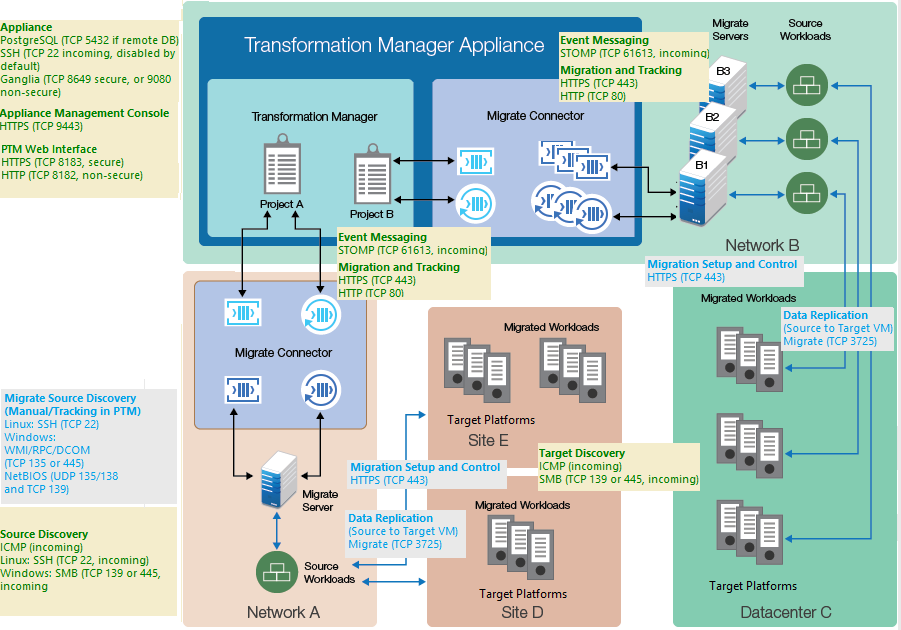
Your environment must meet the requirements described in this section for network connectivity and access. Refer to the ports map in Figure 3-1.

Figure 3-1 Ports Map for PlateSpin Migration Factory
Event Messaging

PlateSpin Migrate provides an event messaging service based on RabbitMQ for use in the PlateSpin Migration Factory environment. Each PlateSpin Migrate server can publish workload migration state change messages to PlateSpin Migrate Connector instances that subscribe to the service on behalf of PlateSpin Transformation Manager projects.

Table 3-1 shows the protocol and port required for event messaging in a PlateSpin Migration Factory environment. These messages reflect events and state changes and do not contain sensitive information.

Table 3-1 Event Messaging Requirements for Network Protocols and Ports

Traffic

Network Protocol and Port

Other Requirements

Event Messaging

61613 (Stomp, allow TCP, incoming)

(not secure)

This port is open by default on the PlateSpin Transformation Manager Appliance, which includes a pre-installed instance of PlateSpin Migrate Connector.

Open this port on all other Connector host servers, the PlateSpin Migrate servers configured for the project, and the firewalls between them.

Workload Discovery

Workload discovery in PlateSpin Transformation Manager requires that you enable incoming ping (ICMP echo reply and ICMPv4-In echo request) traffic for source workloads and firewalls. PlateSpin supports only IPv4. For information about required software, network, and port settings for workload discovery, see Table 3-2.

Table 3-2 Workload Discovery Requirements for Network Access and Communications

Discovery Target

Network Protocols and Ports

Other Requirements

Windows workloads

  • ICMP, incoming

  • SMB (TCP 445 or 139)

  • Microsoft .NET Framework 2.0 SP2, 3.5 SP1 or 4.0

  • Credentials with Domain Admin or built-in Administrator privileges

Linux workloads

  • ICMP, incoming

  • SSH (TCP 22, incoming)

Root-level access. For information on using an account other than root, see KB Article 7920711.

Target Host Discovery

Host discovery requires that you enable incoming ping (ICMP echo reply and ICMPv4-In echo request) traffic for target VMware hosts and firewalls. PlateSpin supports only IPv4. For information about required software, network, and port settings for host discovery, see Table 3-3.

Table 3-3 Host Discovery Requirements for Network Access and Communications

Discovery Target

Network Protocols and Ports

Other Requirements

VMware Cluster hosts

  • ICMP, incoming

  • SMB (TCP 445 or 139, incoming)

VMware account with an Administrator role

Workload Migration

Table 3-4 provides the ports to open in the firewall and on each of the Migrate servers in order for PlateSpin Transformation Manager to use the Migrate REST APIs for automated migration. In addition, the Migration Server resource for Migrate server must provide a valid Credentials resource for the Migrate Administrator user.

Table 3-4 REST API Requirements for Network Access and Communications

REST API Traffic

Network Protocol and Port

Access

HTTPS (secure)

Port 443, TCP, incoming and outgoing

Administrator login credentials for the Migrate server

HTTP (non-secure)

Port 80, TCP, incoming and outgoing

Administrator login credentials for the Migrate server

In addition, Transformation Manager requires that your migration environment meets the PlateSpin Migrate requirements for network communications. See Requirements for Migration in the PlateSpin Migrate 12.2.1 User Guide.

3.1.4 Security Guidelines

PlateSpin Transformation Manager provides several key security options.

SSL (HTTPS) for Secure Communications

For secure connections between PlateSpin Migrate Connector and PlateSpin Transformation Manager, the Jetty SSL settings on the PlateSpin Transformation Manager Appliance VM are configured with the latest recommended security settings.

Ensure that you configure the Appliance to use port 8183 for secure communications.

SSL Certificate for Secure Communications

The installation of the PlateSpin Transformation Manager Appliance generates and installs a self-signed certificate for SSL (Secure Sockets Layer) communications. It uses the DNS name that you specify for the PlateSpin Transformation Manager Appliance. The certificate applies to the appliance and the software.

For higher security, Micro Focus recommends that you use a server certificate that is signed by a trusted certificate authority (CA) such as VeriSign or Equifax. You can use your own existing signed certificate, or you can use the Digital Certificate tool on the appliance to create a certificate, have it signed by a trusted certificate authority, and then add it to the appliance.

NOTE:The DNS name of the server must match the subject of the security certificate.

To import your signed certificate, you must provide the certificate and key, as described in Digital Certificates in the PlateSpin Transformation Manager Appliance Guide.

Antivirus Setup for Discovery

To run discovery on Windows workloads, you might need to exclude certain services, files, and folders from antivirus protection.

  • Service: Exclude the PTM Discovery Service (PTMDiscoverySvc.exe) from antivirus protection.

    This service uses the PsExec utility to run remote commands on the target MachineDiscoveryReader.dll.

  • Files and Folders: Exclude the PlateSpinDiscovery directory, including any subdirectories and files, from antivirus protection.

    During each discovery attempt, all binaries and services files the PTM Discovery Service creates and uses are located under the PlateSpinDiscovery directory in the first Windows share it discovers, such as Admin$.

  • Ports: The antivirus software must not restrict any of the ports needed for discovery. For port information, see Workload Discovery.

Proxy Services

PTM is proxy aware. It can use the Proxy Client settings on the host Appliance for communications with the Micro Focus License Server. Persistent Internet access is required to license the individual workloads during the planning process. You might need to configure proxy services in a highly restrictive networking environment.

For information about configuring the PlateSpin Migrate Connector host server as a Proxy Client, see Section 3.7, Configuring Proxy Client Settings.

Unique Login Credentials for Each Connector Instance

To distinguish actions initiated by the project’s Connector instance, we strongly recommend that you create a unique User object to use for the Connector login credentials instead of using a real User object. Create this special user as a System user, then assign it a Project Architect role at the Project level. Create a different User object for each Connector instance with permissions appropriate for its assigned project.

Password Security for Credentials Resources

PlateSpin Transformation Manager uses industry-standard strong encryption to secure passwords in the PTM database for the Credentials resources used to access source machines and target hosts. The 16-digit key is randomly generated during the Appliance installation. The key is unique to each PTM server. As new Credentials resources are created, their passwords will be encrypted with this key.

The encryption key is stored as the tm.encrypt.key property in the system.properties file:

/opt/microfocus/ps_transform_mgr/config/system.properties

PTM writes the system.properties file to a ZIP file and saves it in the /vastorage/conf/ folder when the appliance shuts down.

The system.properties file is protected by the strength of the password you set for root and other system users on the Appliance as well as other security best practices in your data center.