2.3 Configuring the RAID for Dell PowerEdge R730xd and Earlier Models
The PlateSpin Forge Appliance requires a RAID storage array to provide storage fault tolerance. On first boot of the PlateSpin Forge Appliance Hardware, use the Dell PowerEdge Expandable RAID Controller (PERC) BIOS Configuration Utility to configure the appropriate RAID type for your system. See Table 2-1, RAID Configuration for Forge Appliances.
NOTE: To perform this task, you must connect a keyboard and a monitor to the server hardware being used for the appliance.
Do not use the Dell Enhanced Multimedia USB Keyboard – Model: SK-8135. It is known to cause USB conflicts.
To configure the RAID controller:
-
Boot the server hardware.
-
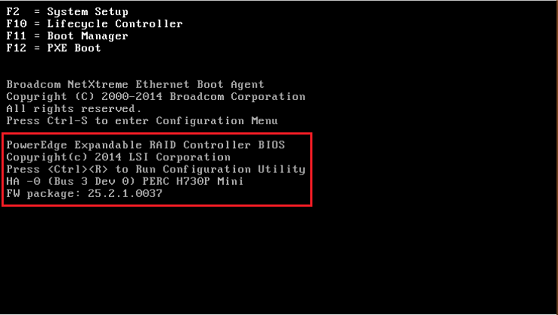
During the boot sequence, wait approximately 24 seconds for the PowerEdge Expandable RAID Controller BIOS screen, then press Ctrl+R to launch the PERC Configuration Utility.
-
Configure the PERC RAID controller to have multiple logical disks over a single RAID array (that is, a RAID 6, a RAID 5, or a RAID 1, based on the appropriate RAID type for your hardware):
-
Delete any existing disk groups:
WARNING:Deleting a disk group also deletes the data on that disk group.
-
On the Virtual Disk Management page, select an existing disk group, then press F2.
-
In the Operations dialog, select .

-
Repeat Step 3.a.a and Step 3.a.b for all existing disk groups.
-
-
Create a new disk group for the Forge system:
-
On the Virtual Disk Management page, select the RAID controller at the root of the tree view, then press F2.
-
In the Operations menu, select .
-
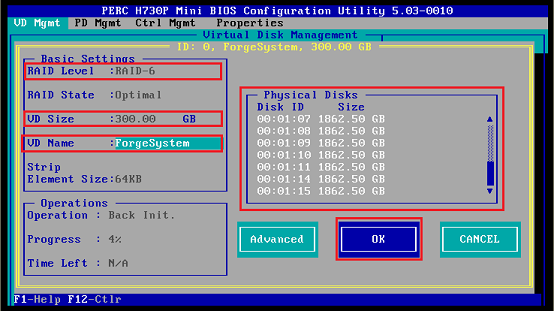
On the Create New VD page, configure the new virtual disk by setting values for the following parameters:
Parameter
Description
Select the RAID configuration that you need for your storage array.
Select RAID-6, RAID-5, or RAID-1 based on your Forge model. See Table 2-1, RAID Configuration for Forge Appliances.
Select all available physical disks to be members of the RAID array. To select a disk, highlight the disk item and press the Spacebar.
Disk sizes might vary with your Forge model.
Specify the size for the Forge system disk. The recommended size is 300 GB.
Type 300 if the PERC Controller displays the disk size in GB. Type 307200 if the disk size is displayed in MB.
Type ForgeSystem. The virtual disk name is case sensitive.
-
Select and press Enter.
-
-
Create a new disk group for the Forge failover VMs:
-
On the Virtual Disk Management page tree view, select _ (see Step 3.b.c) and press F2.
-
In the Operations menu, select .
-
On the Add VD in Disk Group 0 page, configure the new virtual disk for the failover VMs by setting values for the following parameters:
Parameter
Description
Depending on the appliance model you have, use the remaining disk space value as your default backup storage, such as 22050 GB.
Type FailoverVMs. The virtual disk name is case sensitive.

-
Select and press Enter.
-
-
For each virtual disk, configure the disk to fast initialize:
-
On the Virtual Disk Management page under , select the disk name, then press F2.
-
In the Operations menus, select > > .
-
Repeat Step 3.d.a and Step 3.d.b for each virtual disk.
-
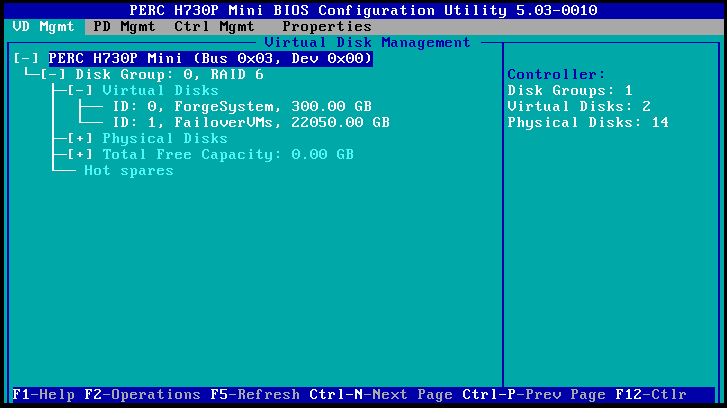
The final configuration screen for RAID 6 should look like this:
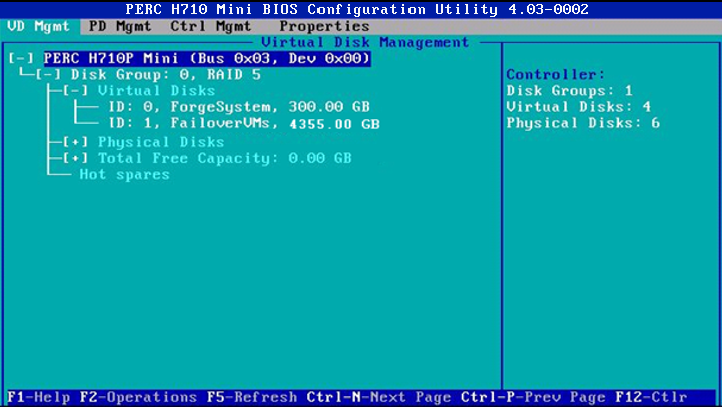
The final configuration screen for RAID 5 should look like this:
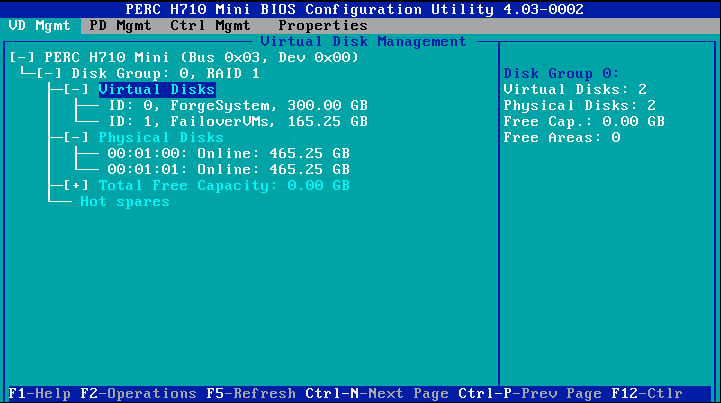
The final configuration screen for RAID 1 should look like this:
-
-
Press Esc to exit the PERC Configuration Utility.
-
Press Ctrl+Alt+Del if you are prompted. The server reboots with the new settings.