For Forge product licensing, you must have a license activation code. If you do not have a PlateSpin Forge license activation code, request one through the Customer Center. A Customer Care representative will contact you and provide instructions for how to access the license activation code through your Customer Center account.
You have two options for activating your product license: online or offline.
For online activation, the PlateSpin Forge Web Interface must have Internet access so the PlateSpin Server
NOTE:HTTP proxies might cause failures during online activation. Offline activation is recommended for users in HTTP proxy environments.
To activate a Forge license online:
In the PlateSpin Forge Web Interface, click Add PlateSpin Forge License > Add License. The License Activation page is displayed.
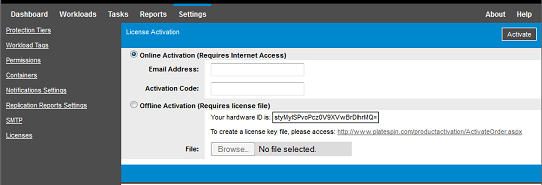
Select Online Activation, specify the email address that you provided when placing your order and the activation code you received, then click Activate.
The system obtains the required license over the Internet and activates the product.
For offline activation, you first need a computer that has Internet access to access the PlateSpin Product Activation website where you will generate the license key file that you will use for offline license activation.
To activate a Forge license when offline:
In the PlateSpin Forge Web Interface, select Add PlateSpin Forge License > Add License.
The License Activation page is displayed.
Select Offline Activation and copy the Hardware ID shown.
Use a web browser on a computer that has Internet access to navigate to the PlateSpin Product Activation website. Log in with your Customer Center user name and password of the user account used when you purchased the product.
Create a license key file. This process requires the following information:
the activation code that you received
the email address that you provided when you placed your order
the hardware ID that you copied in Step 2
Save the generated license key file, transfer it to the product host that does not have Internet connectivity, and use it to activate the product.
In the Web Interface on the License Activation page, type the path to the file or browse to its location, then click Activate.
The license key file is saved and the product is activated based on this file.