7.7 Navigating with Charting Bookmarks
Use bookmarks to move to a specific date and time in the timeline. Think of them as shortcuts to specific areas of a chart. This section explains how to add a bookmark, access a bookmark, manage existing bookmarks, and open a list for selection of bookmarks.
7.7.1 Accessing Bookmarks
To access chart bookmarks:
-
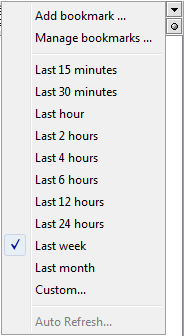
Click the s button in the top right corner of the view.
A menu and list of bookmarks display to the left, as shown in the following:
7.7.2 Bookmarking the Current View
To bookmark the current view:
-
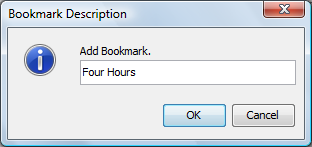
In the view, click the s button, then select from the drop-down list to open the Bookmark Description dialog box.
-
Specify a name for the bookmark, then click .
-
The new bookmark for the current timeline selection displays in the drop-down list.
7.7.3 Editing a Bookmark
To edit a bookmark:
-
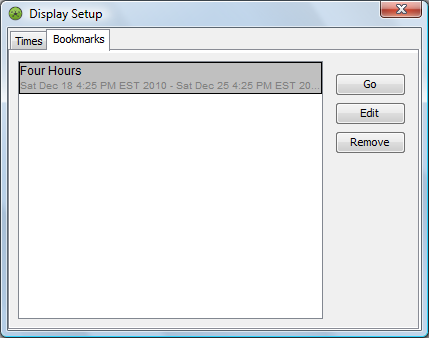
In the view, double-click the timeline or click to open the Display Setup dialog box.
-
Click the tab:
-
To edit a bookmark, select it, then click .
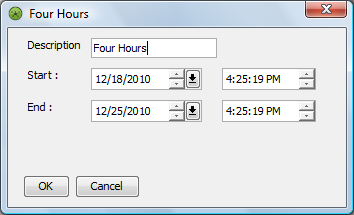
A dialog box with the bookmark’s name displays:
-
Edit the bookmark name in the field or change the start and/or end date and times.
-
Click to save the changes to the bookmark.
7.7.4 Deleting a Bookmark
To delete a bookmark:
-
In the view, double-click the timeline or click to open the Display Setup dialog box.
-
Click the tab.
-
Select a bookmark.
-
Click .
A confirmation dialog box displays.
-
Click to remove the bookmark from the list.
7.7.5 Displaying the Date and Time in the Performance View
To display in the view the date and time specified by a bookmark:
-
Double-click the timeline or click to open the Display Setup dialog box.
-
Click the tab.
-
Select a bookmark.
-
Click .
The view updates to display data matching date and time specified by the bookmark.