4.3 Creating Views in the Operations Center console
You can create your own views in the Operations Center console that select data from a single table. This view only extracts data only one level deep (the element and the child immediately beneath it) in the hierarchy.
The Operations Center console contains functionality for viewing and editing existing views, as well as creating, copying, editing, and deleting views.
The iSQL Viewer in the MOSDB utility only allows you to view the data in SQL Views. This utility is not intended for use with SQL Views.
The following sections cover creating and maintaining views:
4.3.1 Editing a View
-
In the Operations Center console, expand > > .
-
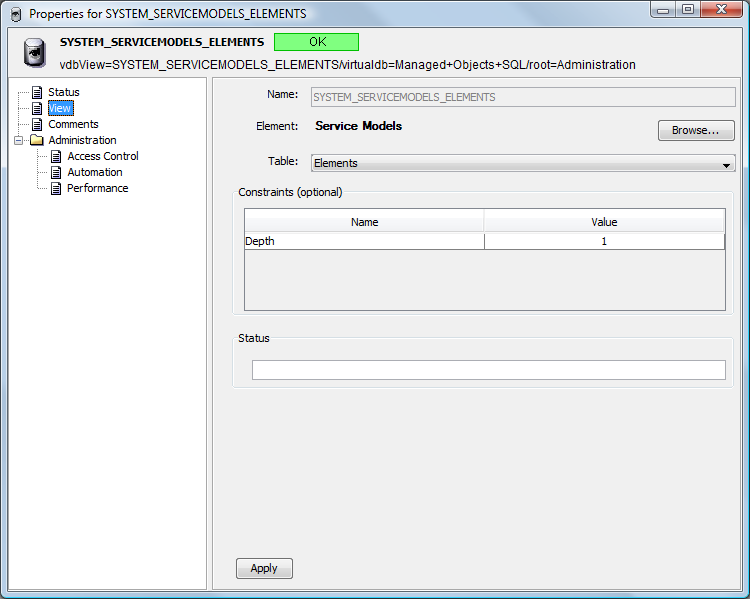
Right-click the desired view, select , then select in the Properties dialog box.
-
Edit the view as required.
4.3.2 Creating a New View
To create a new view, you have two options:
-
Copy an existing view and modify it.
-
Create a new view from scratch.
You cannot rename or modify system views, such as views that are named . However, you can copy a system view and rename the copy.
Copying a View and Renaming It
-
Right-click a view, then select .
The view is copied to the Clipboard.
-
Right-click the element, then select .
A copy of the view name is appended with _COPY and placed under the element.
-
Right-click the view, then select to open the Rename dialog box.
-
Specify the new name, then click .
The renamed view displays in the pane.
Creating a New View from Scratch
-
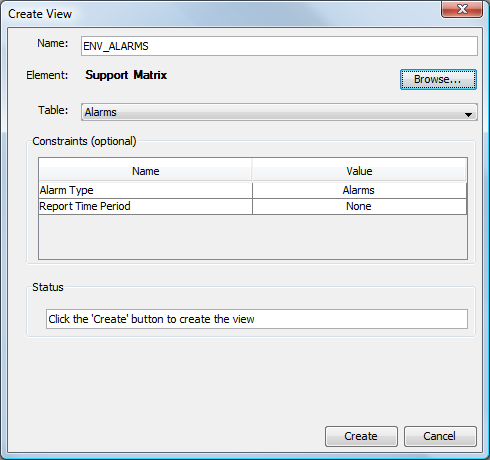
In the pane, right-click , then select :
-
Fill in the fields:
Table: Select the database table to query.
Element: (Required) Click to open the Browse for Element dialog box, then select the element (and its children) where the view applies.
Constraints: Select the check box next to data that should determine data relevance. For example, a specific alarm type (Alarms, Breaches) or time category can affect data query selection. The list of constraints depends on the selected table. For more information, see Section 4.1, Using Tables.
-
Click .
A message displays in the Status box stating that the view was successfully created. The new view displays under in the hierarchy.
4.3.3 Deleting Views
You can only delete views that you create. You cannot delete system views, whose names begin with SYSTEM_; these views ship with Operations Center. If you delete a view that is referenced by a report, then the report no longer works.
Deleting a View
-
Right-click a view, then select to display a confirmation dialog box.
-
Click to delete the view.
Deleting Multiple Views
-
Right-click the element, then select to open the Manage Views dialog box.
-
Use Shift+click or Ctrl+click to select multiple views.
-
Click to delete the views.
A message displays in the dialog box saying that the views were successfully deleted.