7.3 Creating an Application Object
Applications store static configuration parameter values for SecretStore. Application information is specific to the applications that are consuming the application credential (for example, GroupWise client information or SAP database client information). The application objects can be created in Designer or iManager.
7.3.1 Creating an Application Object in Designer
The following is one of many methods you can use to create the application in Designer.
-
In the Outline view, right-click the driver object where you want to store the application object.
-
Click
 .
.
-
Specify a name for the application object.
-
Select to use the SecretStore template.
Verify that the check box is selected.
-
Click .
-
Click , in the conflict window, to save the new application object.
-
Use the following information to complete the creation of the application object.
Field
Description
SecretStore Application ID
Specify the SecretStore Application ID. (See worksheet item 9).
SecretStore Secret Type
Select the . (See worksheet item 8).
SecretStore Shared Secret Type
Select the . (See worksheet item 7).
Use Enhanced Protection Flag
Select whether the is or .
Enhanced Protection Password
If the is enabled, set the enhanced protection password twice.
-
Click the icon
 to save the application.
-
Click the icon
 to add the authentication keys required for the application.
-
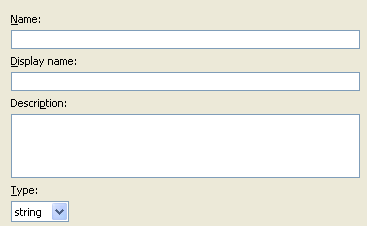
Specify a name for the authentication key.
-
Specify a display name for the authentication key.
-
Specify a description of the authentication key for your reference.
The authentication key is stored as a string.
-
Click .
-
Repeat Step 9 for each new authentication key that needs to be entered.
-
-
Specify the authentication key value, if it is a static value that is shared by all user credentials.
-
Click the icon
to save the application.
After the application object is created, proceed to Section 7.4, Creating Credential Provisioning Policies.
7.3.2 Creating an Application Object in iManager
-
In iManager, select
-
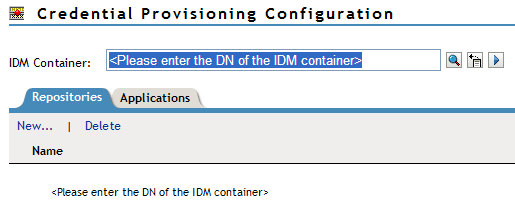
Browse to and select the Driver object where the application object will be stored, then click .
-
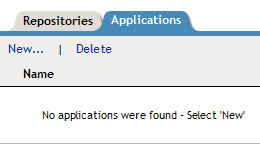
Select the tab, then click .
-
Specify a name for the application object
-
Select to use the SecretStore template to create an application.
-
Click .
-
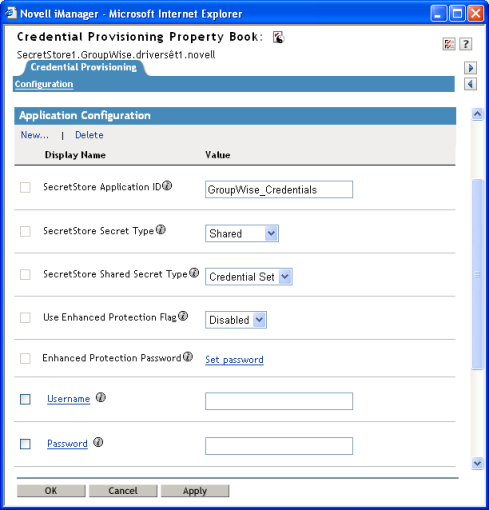
Use the following information to complete the creation of the application object.
Field
Description
SecretStore Application ID
Specify the SecretStore Application ID. (See worksheet item 9).
SecretStore Secret Type
Select the . (See worksheet item 8).
SecretStore Shared Secret Type
Select the . (See worksheet item 7).
Use Enhanced Protection Flag
Select whether the is or .
Enhanced Protection Password
If the is enabled, set the enhanced protection password twice.
-
Click to create an authentication key that the application requires. (See worksheet item 10).
-
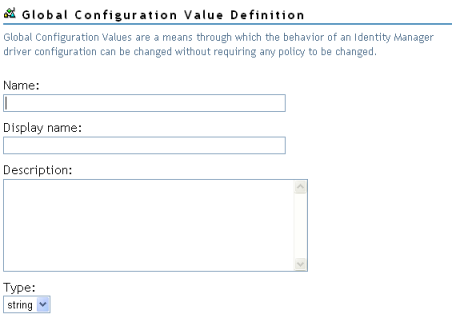
Specify a name for the authentication key.
-
Specify a display name for the authentication key.
-
Specify a description of the authentication key for your reference.
The authentication key is stored as a string.
-
Click .
-
Repeat Step 8 for each authentication key that the application requires.
-
-
Specify the value of the authentication key, if it is static, then click .
After the application object is created, proceed to Section 7.4, Creating Credential Provisioning Policies.