6.7 Resetting the Forge Appliance to Factory Defaults
NOTE:Depending on your PlateSpin Forge model, this process might take up to 45 minutes or longer.
To reset your Forge Appliance unit to its factory default state:
-
Disconnect all external/remote/shared storage systems from Forge, such as Fibre Channel, iSCSI, or NFS.
-
Disconnect all network cables from the Forge Appliance.
WARNING:If you are performing a factory reset on multiple Forge appliances connected to the same physical switch, skipping this step might cause IP address conflicts and result in failure.
-
Reboot the appliance VMware host:
-
Log in to the VMware host:
-
At the local console of the Forge Appliance, press Alt+F1.
-
Log in as root (password: Password1).
-
-
Press Alt+F2 to open the VMware console.
IMPORTANT:Make a note of the factory reset IP address of the appliance shown on this page. You need this address to log in to the Forge ACC and “relocate” the container to a known, valid IP address. Use the procedure documented in Physically Relocating the Appliance to reset the IP properly.
-
Press F12 to shut down the VMware console.
-
Log in with your administrator-level credentials.
-
Press F2 to shut down VMware, then power down the appliance.
-
If your Forge model does not include an optical media player, attach a optical media player to the appliance.
-
Boot the appliance from the PlateSpin Forge CD/DVD media. Wait for the SYSLINUX menu to display.
-
-
Select the option and press Enter. Ensure that you do this before the default configuration is automatically applied (about 10 seconds).
-
Wait for the Factory Reset process to complete.
If the reset process is successful, the VMware window should look similar to the following:
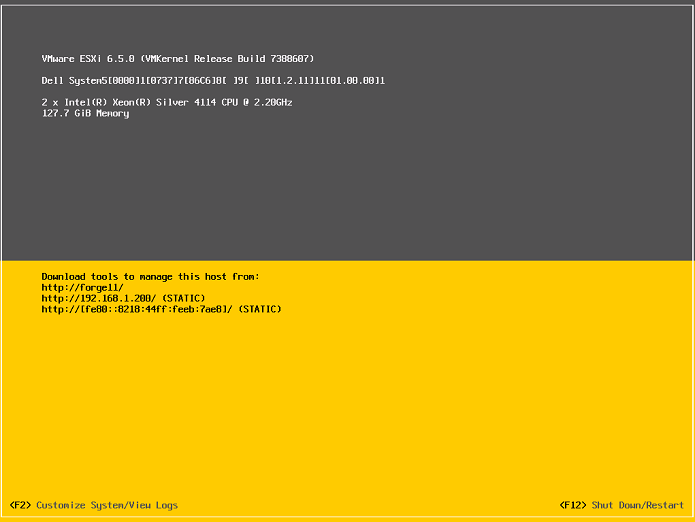
If the reset process fails, the console message should look similar to the following:
The PlateSpin Forge Installation has failed.

-----------------------------------------------------------
CAUSE OF FAILURE:
   - Unable to recover the Forge Management VM from backup
   - The Forge Factory Reset FIRST_BOOT.SH script failed
-----------------------------------------------------------

Please consult the system log file located at /vmfs/volumes/ForgeSystem/PLATESPINFORGE_LOGS/forge.log for details.
In case of failure:
-
Contact Micro Focus Customer Care and be prepared to provide the log files. Log files required for troubleshooting the reset process are:
-
/var/log/forge/forge-recovery.log
-
/var/log/forge/INSTALL_LOG.log
-
/var/log/weasel.log
-
/vmfs/volumes/forgeSystem/PLATESPINFORGE_LOGS/forge.log
The contents of these log files should also be available by selecting the tab in the Forge ACC interface.

-
-
Consider rebuilding the Forge Appliance using a Field Rebuild Kit that you can obtain from Micro Focus Customer Care. For rebuild instructions, see the PlateSpin Forge 11.3 Rebuild Guide.