5.2 Installing VMware ESXi 6.5 U1 to the Appliance
PlateSpin Forge requires VMware ESXi 6.5 U1 to host the Forge Management VM. Ensure that you have the PlateSpin Forge 11.3.0 Installation disc before you proceed with the installation.
NOTE:The PlateSpin Forge hardware does not have an internal CD/DVD drive. During the Forge installation process, you must attach an external optical drive that is capable of playing the PlateSpin Forge 11.3.0 Installation disc. Use any available USB port on the hardware.
If you encounter problems during the VMware ESXi installation, see Section A.2, Errors Occurring During ESXi Installation.
To install VMware ESXi to the Forge Appliance:
-
Connect a keyboard, a monitor, and an external CD/DVD drive to the server hardware being used for the appliance.
NOTE:Do not use the Dell Enhanced Multimedia USB Keyboard – Model: SK-8135. It is known to cause USB conflicts.
-
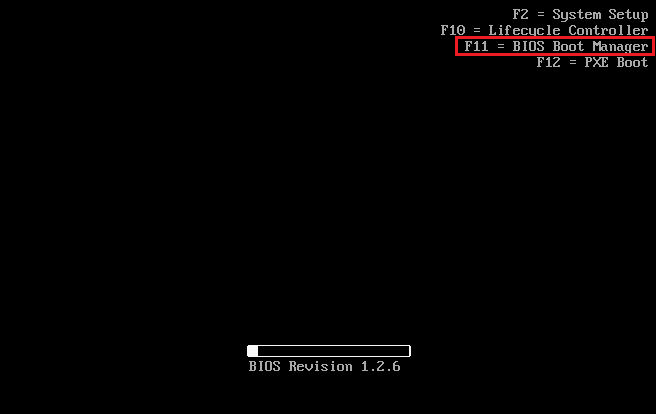
Power on the appliance and press F11 at the boot prompt.
-
While at the boot prompt, insert the PlateSpin Forge 11.3.0 Installation disc in the CD/DVD drive.
It might take some time for the Boot Manager utility to be displayed.
-
In the Boot Manager Main Menu, select to launch the BIOS Boot Manager.

-
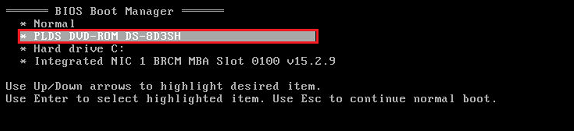
In the BIOS Boot Manager utility, use the Up arrow and Down arrow to navigate to the option that lets you boot from an optical device (for example, a SATA optical drive), then press Enter.
NOTE:The name of the optical device will vary, depending on the device you attached to the appliance.
-
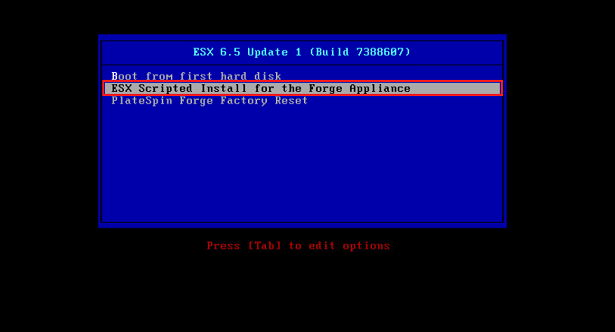
On the ESX 6.5 Update 1 build installation menu, select , then press Enter to load the ESXi 6.5 U1 installer.
-
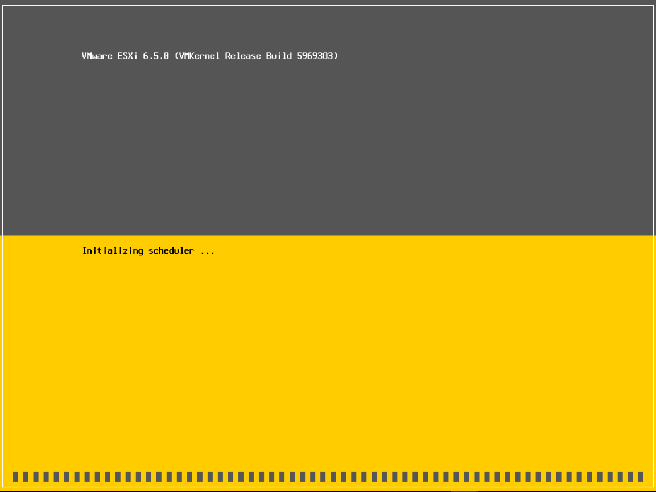
Wait while the script executes the VMware installation. The installation progress updates on the screen and moves through several stages.

-
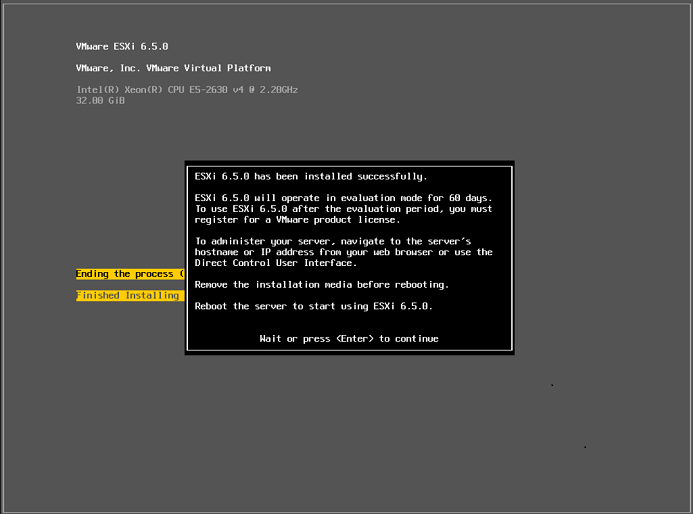
When the VMware installation process is completed, the confirmation dialog displays prior to the system reboot.
-
Remove the installation media, then press Enter to reboot the system (or let the system reboot itself).
NOTE:If you choose not to attend the installation, the system reboots on its own.
-
After the system has rebooted, continue with the instructions in Section 5.3, Importing the Forge Appliance Virtual Machine.