5.1 Navigating the View and Exploring Element Hierarchies
Use the navigational tools in the sidebar to locate and zoom in on objects:
Table 5-1 Navigational Tools
|
Icon |
Name |
Description |
|---|---|---|
|
|
Standard View |
Standard viewing mode. Click an element to zoom and center it in the browser. Double-click the layout background to center all the elements. |
|
|
Marqee Zoom |
Zooms in to a specific area. Click and drag to select an area. To gradually zoom out, click the background. |
|
|
Pan Map Navigation |
Click and drag to navigate across the entire layout. |
|
|
Fisheye Zoom |
Hover the cursor over an element to view element details. This is most effective for viewing a large layout where details are not easily legible. |
|
|
Overview Navigator |
Opens a small dialog box for viewing and navigation purposes. 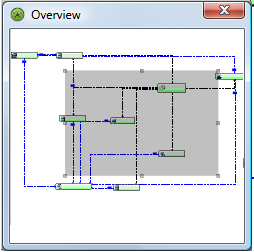
|


A minimum of View security privileges to both elements in a relationship is required, or else the relationship is not displayed in the Network view. For more information on element security privileges, see the Operations Center 5.6 Security Management Guide.