7.5 Saving a Search Query as a Report Template
You can save a search result as a report by using the link at the top of the search results. You can use this report as a reference in future.
-
Log in to Novell Sentinel Log Manager.
-
Perform a search.
-
To save the search query, click the link.
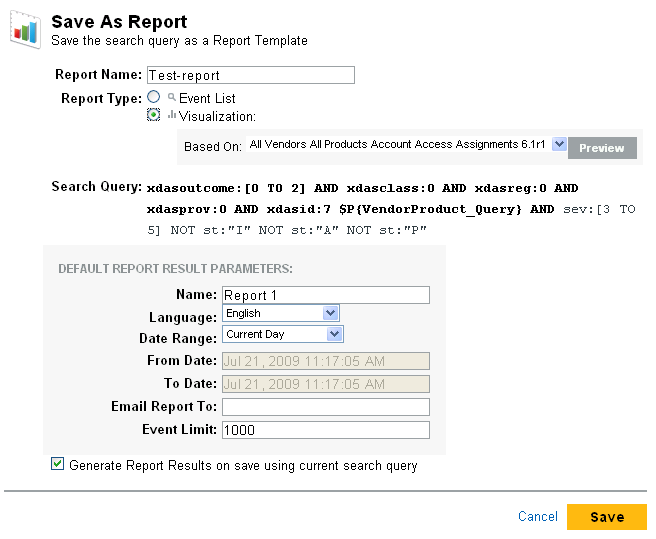
A dialog box is displayed.
-
Specify the report template name for the search in the field.
-
Select one of the following report type format:
-
Event List: Select the option to save the report in the search report format.
Visualization: The field lists the Jasper Reports saved in Sentinel Log Manager. Select a Jasper report from the drop-down list to save the new report template in the Jasper report format.
-
Specify the data values you are interested for the report. To specify the Jasper report parameters, see Step 5.
-
-
The field displays the text of the performed search.
-
Specify the name of the report in the field.
-
Specify the e-mail address to mail the report template to a user. To send the report template to more than one user, enter their e-mail addresses, separated by a comma in the field.
-
To save more than 1000 results in a report, specify the number of results to show in the text field. By default, 1000 results are stored in a report template.
-
To generate report results on clicking save using current search query, select the check box.
-
Click to see the preview of the selected report.
-
Click to save these report definitions.
You can see the saved report definition listed in the Report Viewer column in the Sentinel Log Manager interface. To view the reports, see Viewing the Reports.