5.4 Exporting Search Results
You can use the link to export your search results as a .zip file.
The link is displayed at the top of the search result after performing a search.
NOTE:If there are no results for the search, the link does not appear.
-
Log in to Novell Sentinel Log Manager.
-
Perform a search.
-
To export the search result, click the link.
An Export Results window is displayed.

-
In the field, specify the filename to which you want to export the search results.
-
In the field, specify the event limit to be saved.
The default value for the event limit is the number of search results displayed.
All the search results are written into a .csv file, which is then zipped and provided for download.
-
Click the button to display an window with the option to save the Search_xevents.zip file on your local machine.
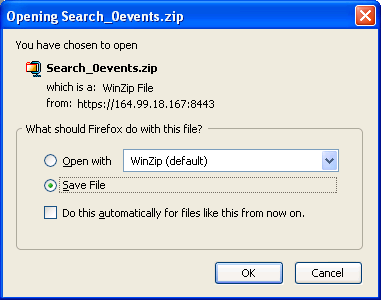
The indicates the number of the tab search result.
For example; the first tab search result is named as and the second tab search result is named as and shown in the search result page.
NOTE:To maintain the consistency between the total search results in the Sentinel Log Manager user interface and the exported events, it is important that the time of the client and the server are synchronized. If the time is not synchronized, there might be differences in the total events in the Sentinel Log Manager user interface and the exported events.
-
Click to save the Search_xevents.zip file.
This zip file contains information about the various fields of the event source.