12.3 Assigning Profiles at the Element Level
After profiles are started and elements are matched for performance and/or alarm history monitoring, it is possible to view the profiles in which a particular element participates. It is also possible to assign a profile to an element through the element’s property page.
To view the profiles in which an element participates:
-
From the pane, right-click an element, then select to open the property page.
-
In the left pane, click to open its property page:
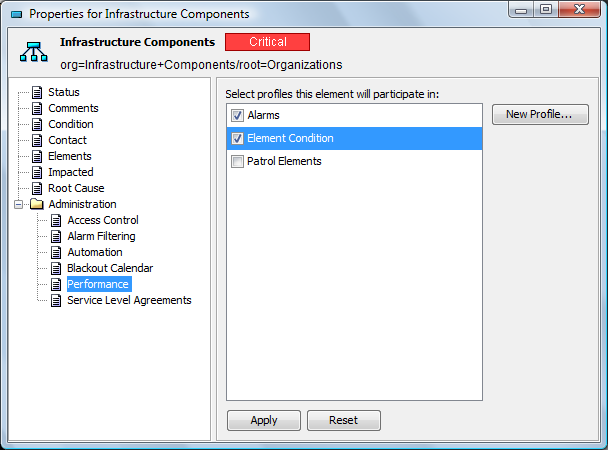
Profiles with a marked check box collect data for the element.
-
To add the element to a profile, select the check box next to the profile.
-
To detach a profile from an element, deselect the check box next to the profile name.
-
Click to save the changes.