3.2 Creating a Experience Manager Adapter
To create a Experience Manager adapter:
-
In the pane, expand the root element.
-
Right-click , then click :
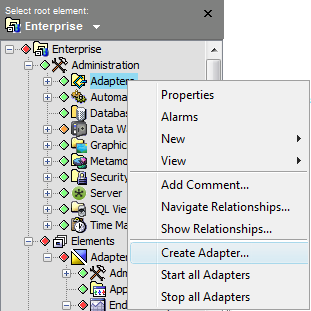
The Create Adapter dialog box opens.
-
Click the drop-down list, then select .
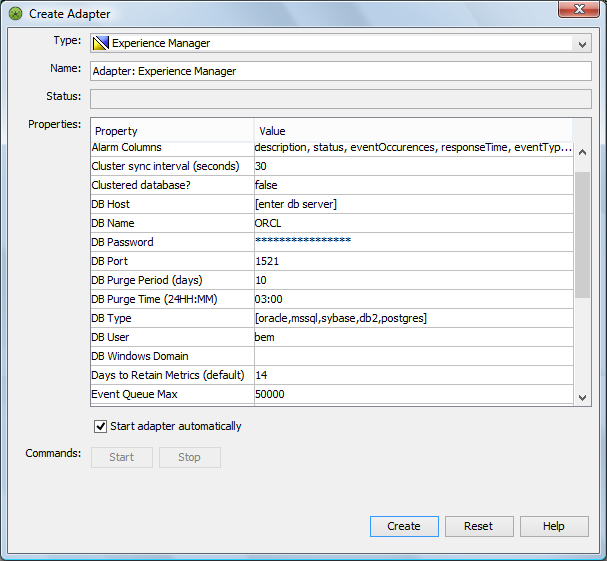
The default name, Adapter: Experience Manager, appears in the Name text box.
-
In the Name text box, edit the default to refine the Experience Manager adapter name.
Default adapter properties display in the Properties table.
-
Edit the property values as required. Refer to Table 3-1 for detailed descriptions of the adapter properties.
Leave the check box selected to start the adapter automatically when the Operations Center server starts. To always start the adapter manually, clear the check box.
-
Click the button.
The button becomes active.
-
Click the button to start the adapter.
-
After creating and starting the adapter, click the button to close the dialog box.
The new adapter displays in the list of elements in the Explorer pane, under > .