 previous


This widget allows you to design titles for the form. A is rendered as non-editable and text-only field in the form output. To add a title on the form, drag and drop the onto the workspace and configure the required settings.
The following section covers the settings displayed in the window. These settings are common for most of the components, except few which may not apply to the . Select the required options as applicable to your use case.
See the tooltip which appears when you position the cursor over the icon for information on what the field does.
The settings under the tab allows you to define how the would appear on the form upon rendering.
Figure 3 Title Element - Display tab
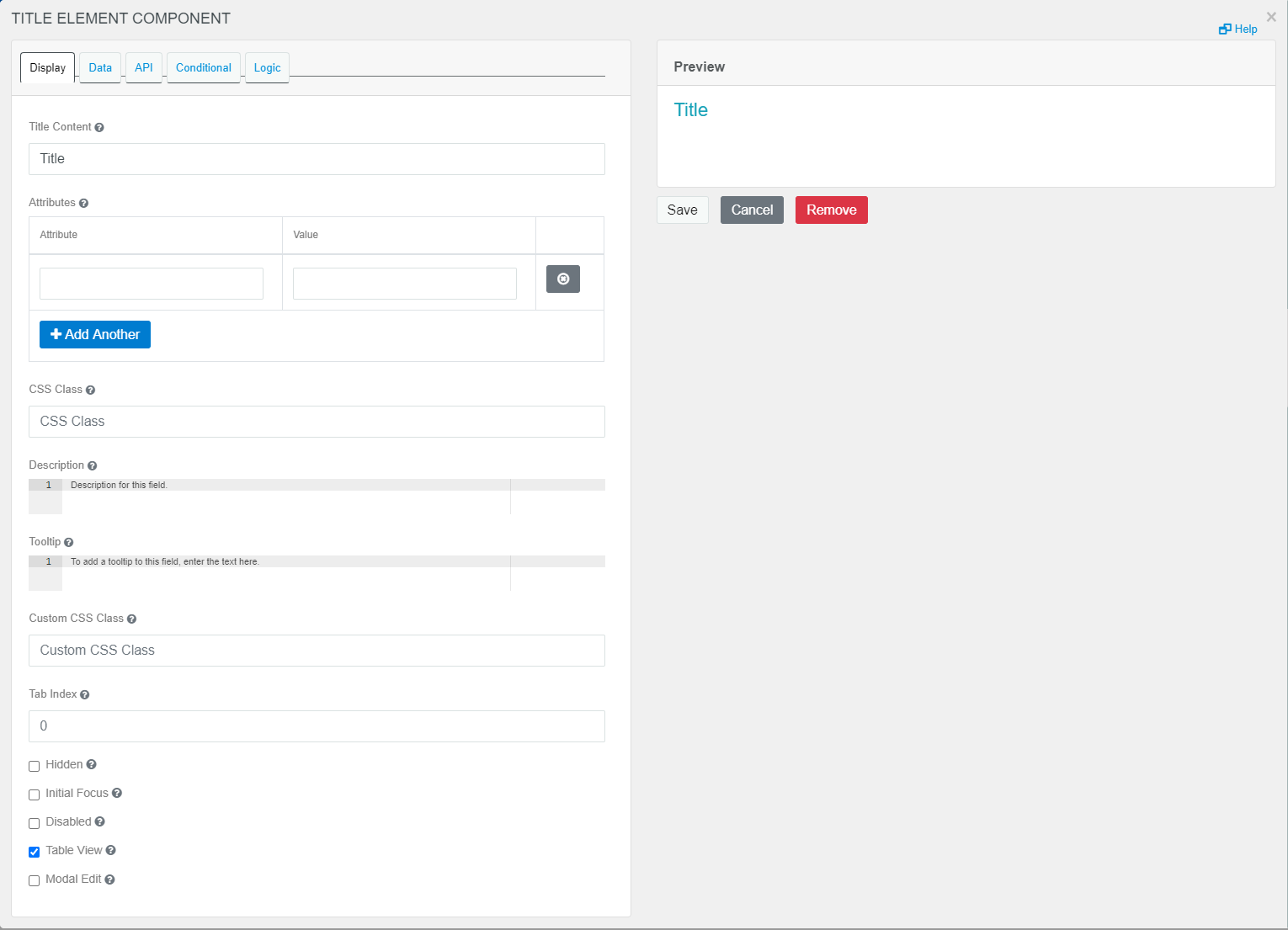
The following fields are listed in the tab of component:
: The content for this component.
: Allows you to add an attribute and the corresponding value to the . For example, a href attribute with URL value or a src attribute with the path to a specific image to display. You can select button to add multiple attributes to this component.
: Add the class name for the title component. The title will be styled based on the class name definition in the CSS stylesheet.
: The text that will appear below the input field.
: The text that will appear in the tooltip when the user hovers on the tooltip icon added to the side of the label.
: Allows you to add a custom CSS class to this component. You can add multiple class names separated by a space.
: Set the tabindex attribute of this component to override the tab order in the form. The default value “0” implies that the component participates in sequential keyboard navigation via the key. When navigating the form using the key, a component with tab index value of 4 is honored before the components with tab index value of 5. Higher the value, lower the priority in sequence (excluding 0).
: The component will be a part of the form JSON, but will be hidden from view after the form is rendered.
: When the form is rendered, this component will become the initially focused element on the form. Note that only one component in a form can carry the Initial Focus setting.
: Disables the user input for this component in the form.
: Shows the value in the table view of the submission list
: Enables a modal window for editing the value of this component on the form.
The settings under the tab allows you to define the default value and format of the component to be displayed on the form.
Figure 4 Title Component - Data tab
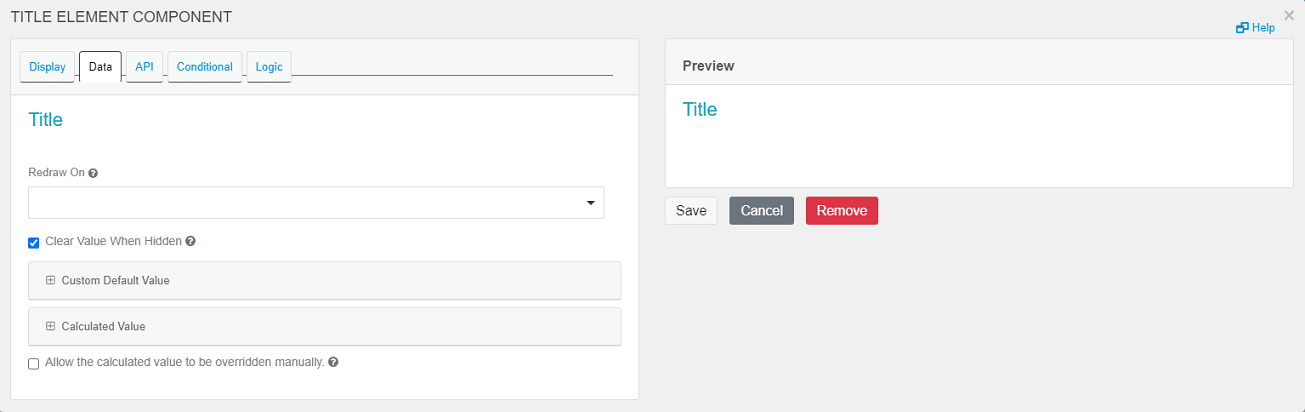
The following fields are listed in the tab of component:
: Resets the input field to default value if there is any change in the form or when a change is detected in a specific form component selected from the drop-down list.
: When a field is hidden, clear this component’s value.
: Use the variables listed here to write and execute JavaScript code or custom logic using JSONLogic to customize the value that will be populated in this component on the form.
: Use the variables listed here to write and execute JavaScript code or custom logic using JSONLogic to calculate value for this component based on the values in other fields of the form.
: Allows the user to override the calculated value manually.