7.0 Disabling a Job
You can disable a job so that it does not run until it is enabled again.
The following steps provide instructions for using iManager to disable a job. For information about using Designer to disable a job, see Scheduling Jobs
in the Designer 4.0.2 for Identity Manager 4.0.2 Administration Guide.
-
In iManager, click
 to display the Identity Manager Administration page.
-
Open the Overview page for the driver or driver set where the job is defined:
-
In the list, click to display the Identity Manager Overview page.
-
In the field, specify the fully distinguished name of the container where you want to start searching for driver sets and then click
 , or leave [root] in the field and click to search from the root of the tree.
You can also click
 to browse for and select the container in the tree structure, or click
  to select the container from a list of previously selected objects.
-
After the available driver sets are displayed on the Driver Sets page, click the desired driver set to display the Driver Set Overview page.
-
(Conditional) If you are disabling the job for a driver (rather than a driver set), click the driver to display the Driver Overview page.
-
-
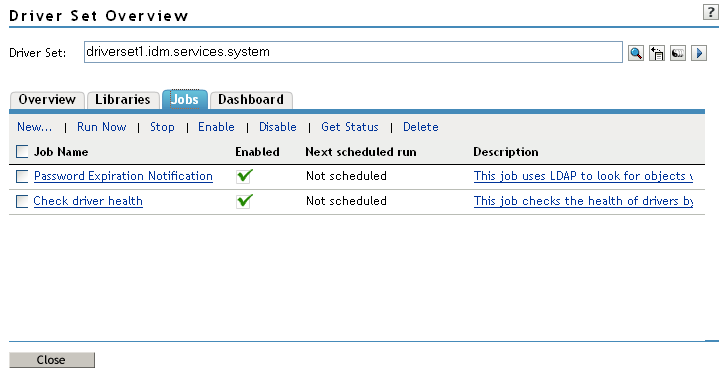
Click the tab.
-
Select the check box in front of the job you want to disable, then click .
-
Click to dismiss the confirmation dialog box.