5.2 Using iManager to Import
Identity Manager provides an example configuration file. You installed this file when you installed the Identity Manager Web components on an iManager server. Think of the example configuration file as a template that you import and customize or configure for your environment.
-
In iManager, select > .
-
Select .
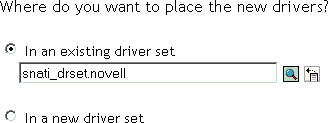
If you place this driver in a new driver set, you must specify a driver set name, context, and associated server.
-
Select, then click .
-
Configure the driver by filling in the configuration parameters.
For information on the settings, see Table 5-1.
-
Click to assign rights to the driver object:
The driver object requires rights to objects within the Identity Vault. The Admin user object is most often used to supply these rights. However, you might want to create a DriversUser (for example) and assign security equivalence to that user. For receiving events from the Identity Vault, ensure that driver object’s has the following rights in the Identity Vault:
Entry Rights: The rights to create entries in the Identity Vault.
Attributes Rights: The rights to modify the attributes in the Identity Vault.
-
Click , then browse to and select the object with the correct rights.
-
Click twice.
-
-
Identify all objects that represent administrative roles and exclude them from replication.
Exclude the security-equivalence object (for example, DriversUser) that you specified in Step 2. If you delete the security-equivalence object, you have removed the rights from the driver. Therefore, the driver can’t make changes to Identity Manager.
-
Click .
Configuration File Conventions
-
Database usernames are the surname of a user concatenated with the corresponding numeric primary key value. For example, John Doe’s username could be Doe1.
-
Initial passwords are the surname of a user. For example, John Doe’s password would be Doe. Because Sybase passwords must be at least 6 characters long, any Sybase passwords that are shorter than 6 characters are padded with the character “p.” For example, John Doe’s password would be Doeppp. The padding character can be adjusted in the Subscriber Command Transformation policies.