C.3 Importing and Deploying the PlateSpin Orchestrate Sentinel Collector Plug-in
-
From the running Sentinel Control Center, click to display the Event Source Management (Live View) window.
-
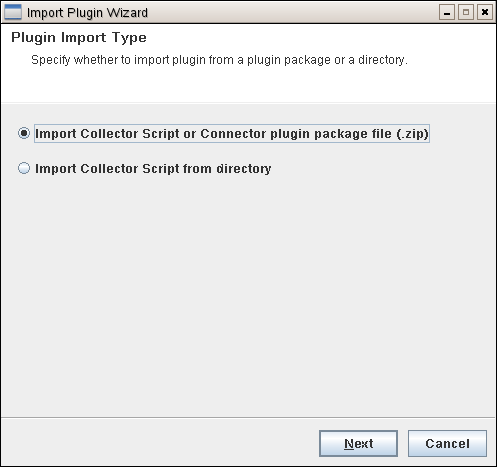
From the Event Source Management (Live View) window, click to display the Import Plugin Wizard.
-
From the Import Plug-in Wizard, select , then click to open a file browser.
IMPORTANT:When you try to import the syslog connector, you might see a message like this:
No universal SYSLOG collector found. Resolve this problem by importing either the Novell Generic Collector or another Syslog collector that is designated as a universal Syslog collector.
You can safely ignore this message. If you need more information, see the Syslog Connector Installation Guide.
-
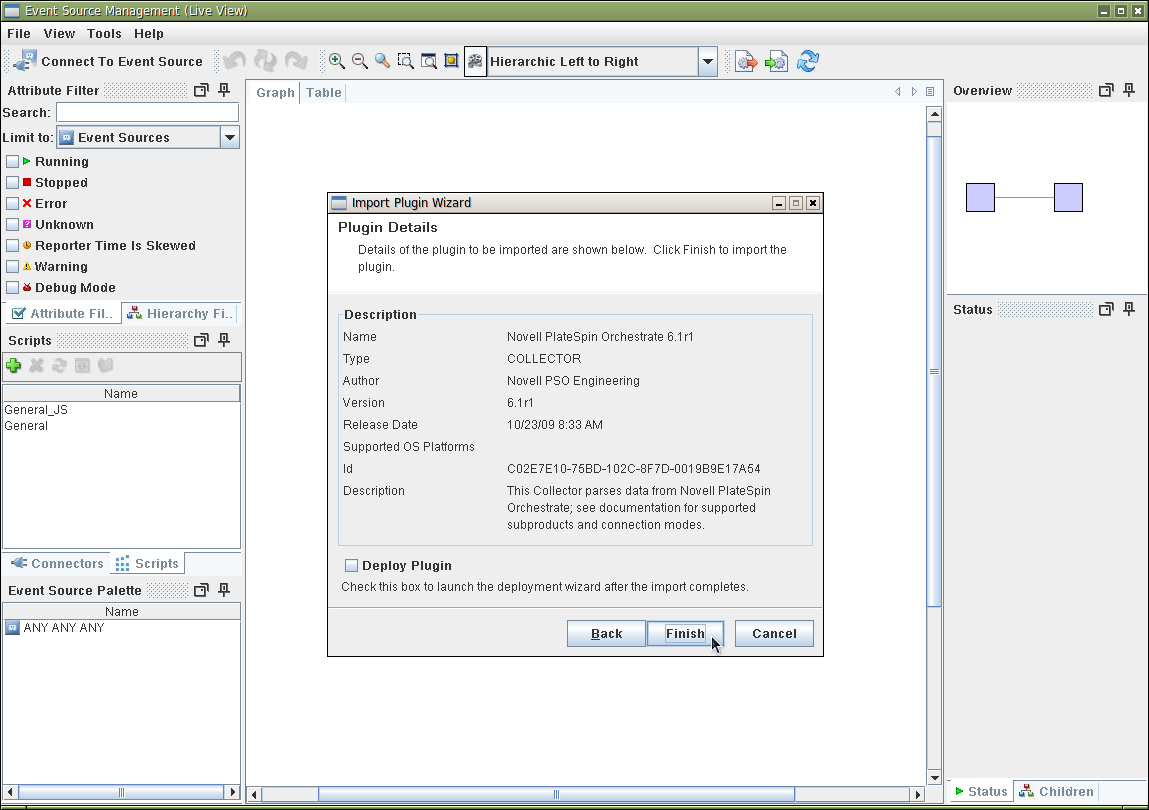
From the file browser, locate and select the PlateSpin Orchestrate Collector .zip file, PlateSpin_Orchestrate_6.1r.clz.zip (or similar), click to display the Plugin Details page.
-
On the Plugin details page, click to display the Graph page of the Event Source Management Live View.
-
On the Graph page, right-click the Collector Manager icon, then click to display the page of the Add Event Source Server wizard.
-
From the Select Connector Plugin page, make sure that the Syslog connector is selected in the Installed Connectors table, then click to display page of the wizard.
-
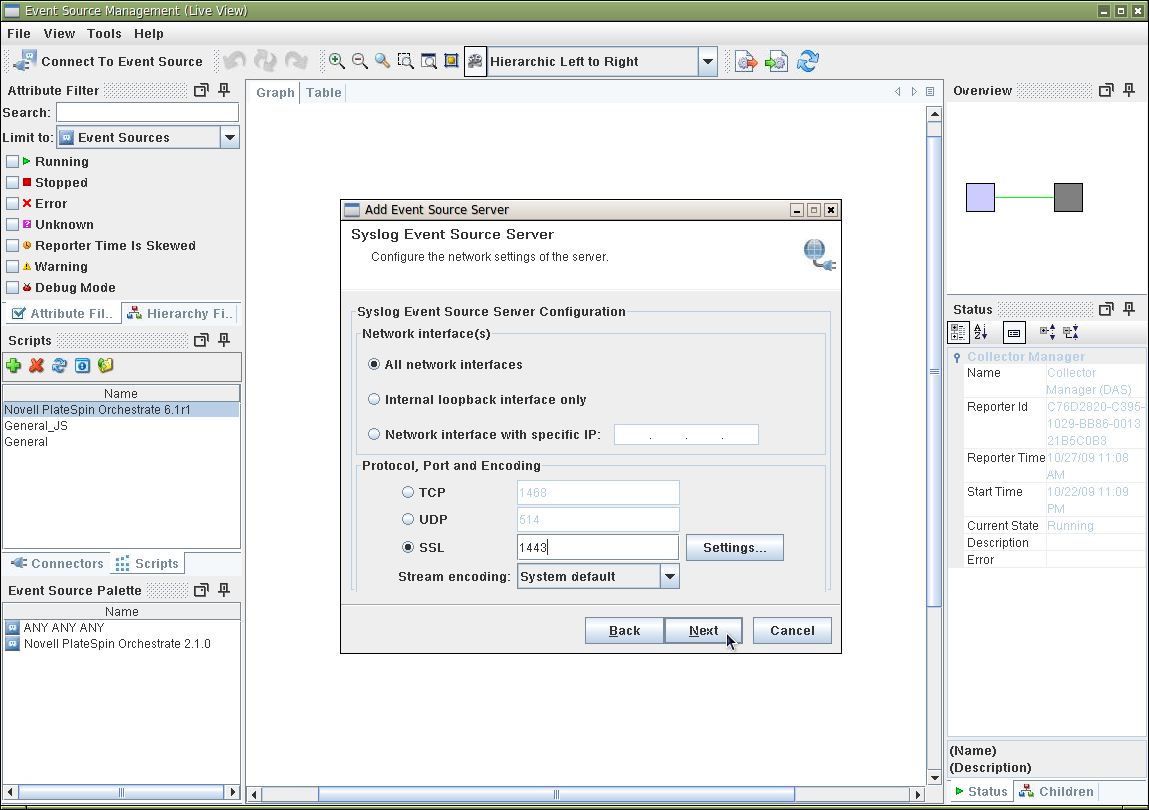
On the page of the tool, Select , enter 1443 as the default port number, then click to display the page of the wizard.
NOTE:Port 1443 is used in this example to eliminate conflict with other Novell products.
It is not required that you use 1443 in this field, but any port number that you configure here must match the port number you assign for Sentinel integration in the PlateSpin Development Client. For more information, see
The Sentinel Server Configuration Panel
in the PlateSpin Orchestrate 2.6 Development Client Reference. -
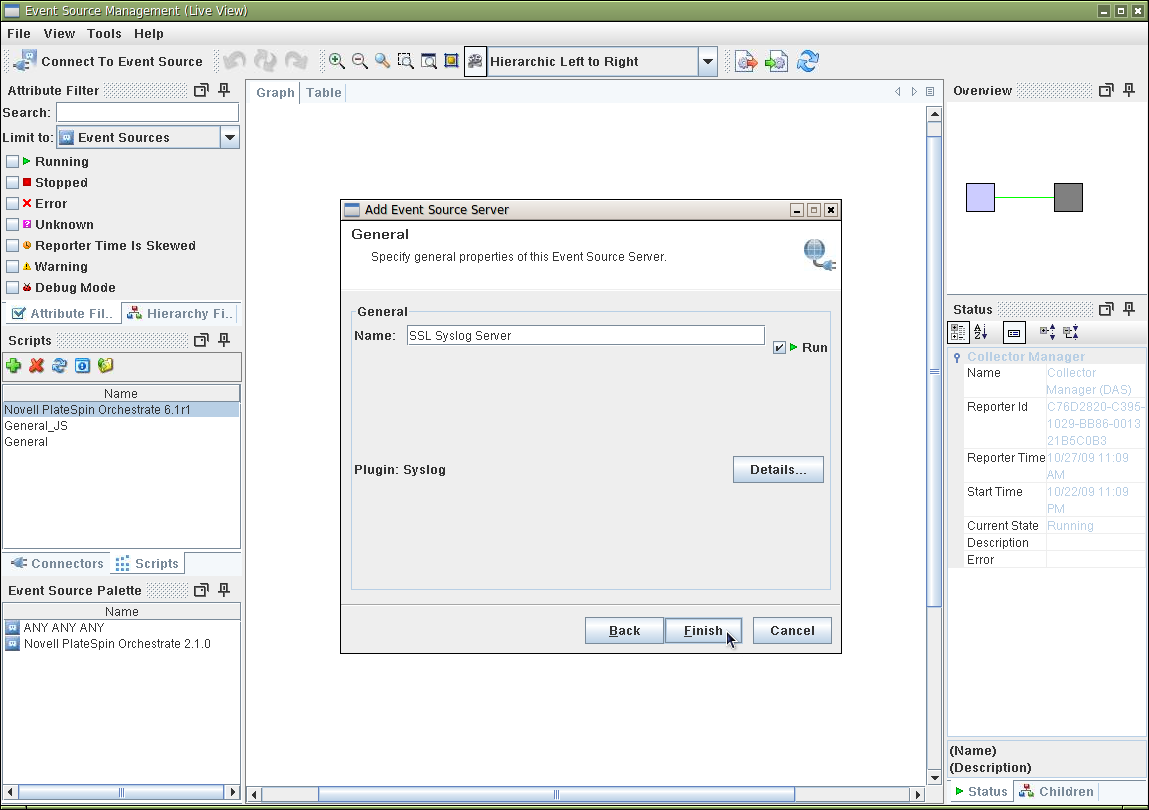
Click on the page and succeeding pages of the wizard until you reach the page.
-
On the page of the wizard, make sure that the check box is selected, then click to display the revised Graph page of the Event Source Management Live View.
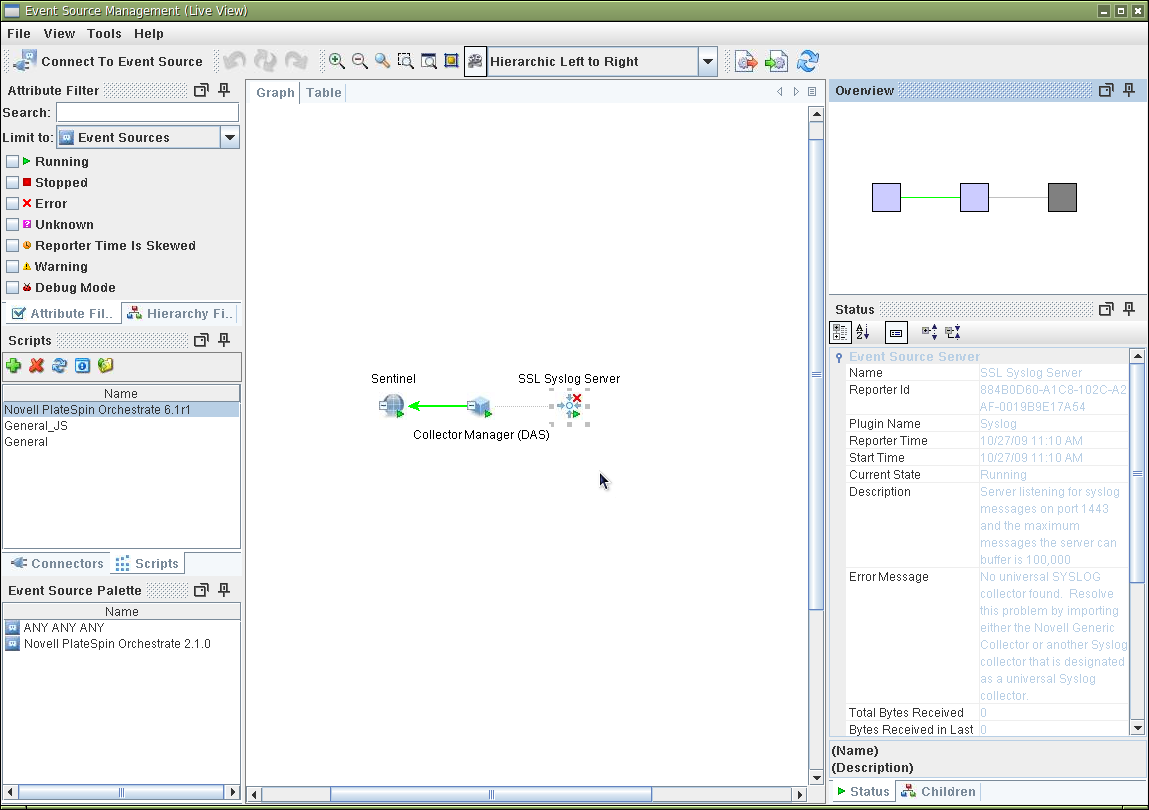
NOTE:In this graph page, the Event Source Server icon displays a superimposed red cross. The view also displays a warning (No universal SYSLOG connector found...) is visible in the right hand pane. You can safely disregard these warnings.